Importing contacts
In this article:
Email import format
Before uploading your contacts, you'll need to ensure that you have the correct format for your upload.
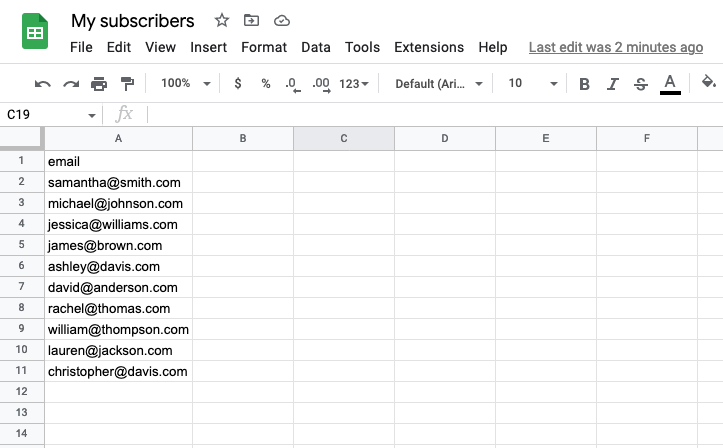
You will need a .CSV file. This file should have a column named "email", containing the subscriber email addresses.
Please see the example below:
How to upload
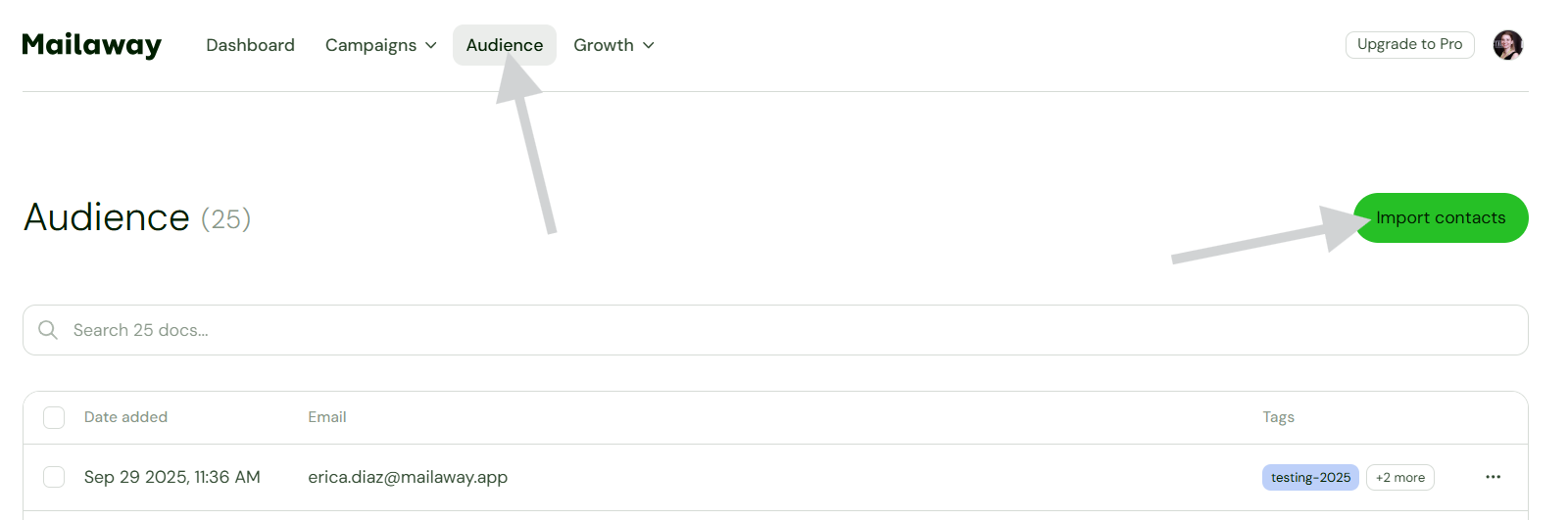
To import your contacts, you'll:
- Click on Audience
- Select Import contacts
Next you'll:
- Upload your CSV file
- Select a status dropdown (subscribed or unsubscribed)
- Create and add tags
- Describe where and how you acquired your email list
- Mark that you have permission to contact them
Note: Legally, you must have obtained permission to contact the email addresses on your list.
Upload processing time
Imported lists are manually reviewed to ensure they meet privacy requirements. This process may take up to 1-3 business days.
You'll be notified when the list has been imported or if more information is needed.