Email design
In this article:
Editing your design in Settings
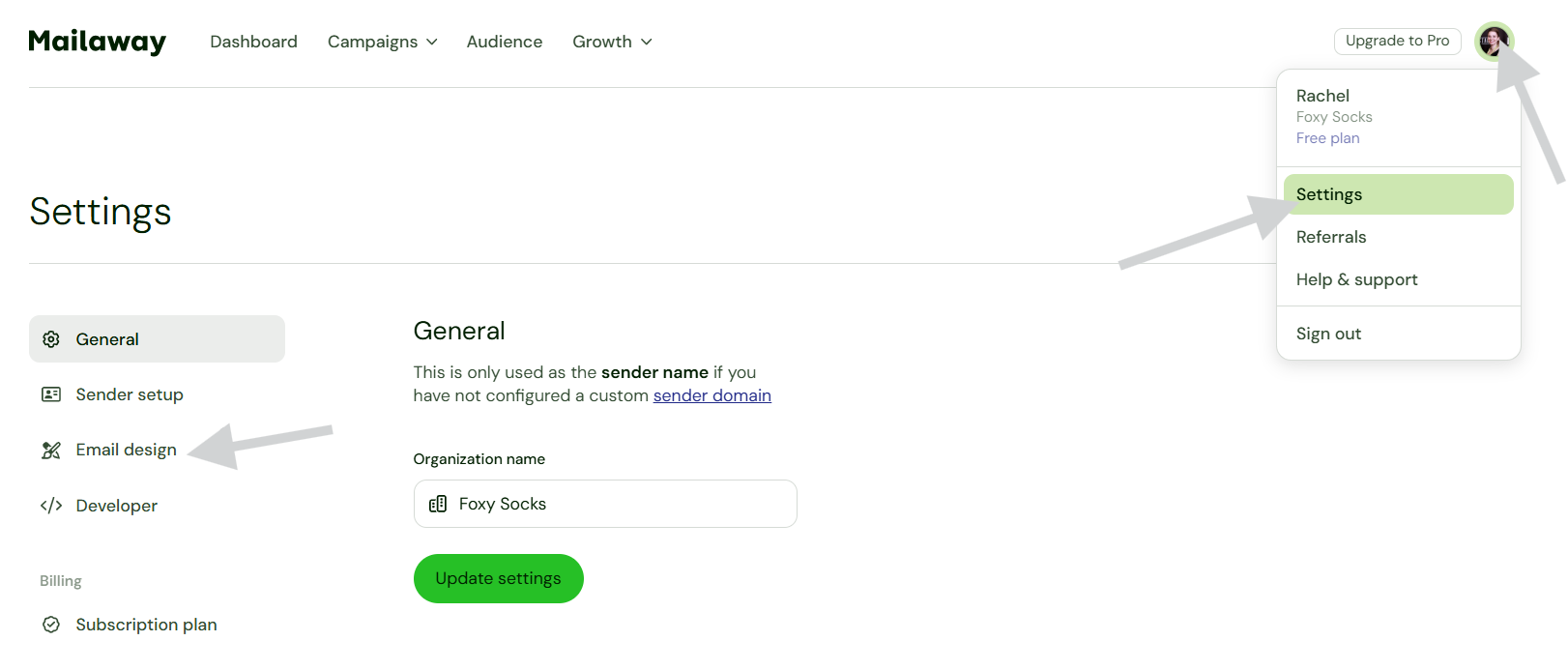
When you first sign up for a Mailaway account, you'll be able to customize your email design and add your Business name and logo. You'll then see this design when you create campaigns.
To edit and change the design:
- Click on your profile icon
- Go to Settings
-
Select Email design
Header
In the header, you can add your Business name and a Logo.
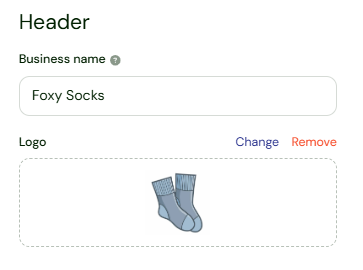
The Business name will appear on your emails, in the footer, and can be used as a logo if you don't have one to add.
Your Logo will be added at the top of your emails, and will also be shown on your Subscribe page, under Growth.
Body
Under Body, you'll be able to choose a preset accent color for the page or create a customized color. By selecting the moon and sun icon in the upper right, you can see how the color will look in light or dark mode.
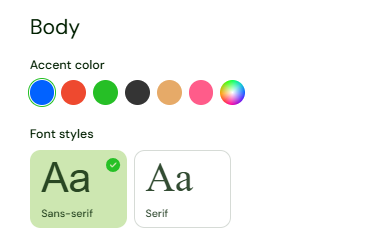
You can then choose between two font options.
Footer
In your Footer, you'll add any additional details, such as company information.
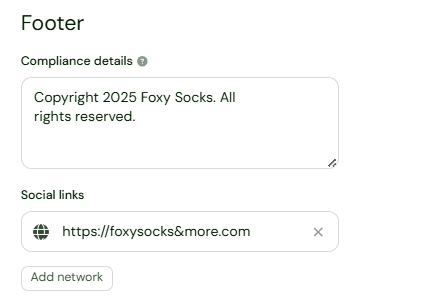
We highly recommend adding your company's physical address in this section, for legal reasons. The CAN-SPAM Act is a US law that requires a valid physical postal address in every commercial email. Violations can result in fines. You can read more on compliance with the CAN-SPAM Act here.
This Act also requires that you offer customers a way to opt out of receiving future marketing email from you. Don't worry about this! Mailaway has you covered. Each email will include a short and easy opt-out option that will automatically remove a subscriber from your mailing list.

You can also add any social links you want to share. Facebook, Instagram, TikTok, website links and more. Icons for these will generate automatically based on what you added. These will also be shown on your Subscribe page.