Subscribe form
In this article:
How is it different from the Subscribe page?
What is a Subscribe form for?
Your Subscribe form is an embeddable signup form you can add to your existing website or blog. Once embedded, anyone can subscribe to receive your emails.

We recommend you use it as much as you can. Growing your subscriber base is important for increasing customer numbers, brand awareness, generating sales, and more.
How is the Subscribe page different from Subscribe forms?
Subscribe pages are very similar. They are also used as a way for subscribers to sign up for your email list. The key difference is that Subscribe forms are embedded into an existing website. They aren't a standalone page like the Subscribe page.
If you have an existing site you'd like to add to, we recommend a Subscribe form.
If you don't have an existing site or don't want to embed, we recommend a Subscribe form.
(It's also possible to use both!)
Customizing my Subscribe form
To customize your Subscribe form, you'll choose from a preset accent color or use the color picker for something more unique and specific. You can also customize the text on your button. The form name is for your reference only. It won't be visible to subscribers at any point.

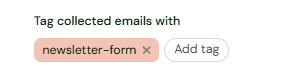
You can also set a Tag (or Tags) for this page. Anyone who signs up through this form will have that unique Tag added. You'll then see the Tag when viewing your contacts in Audience.
Finally, your Subscribe form can be connected to any previously created email sequence. Use the drop-down to select which sequence you want to be triggered. This allows you to send an automatic series of emails to new subscribers.
Embedding my Subscribe form
Once you've customized and created your form, you're ready to embed it. You'll click get embed code and copy it.

Insert the copied code wherever you'd like it, in your site's editor.
- Direct HTML: Paste it between the
<body>tags where you want it displayed. - Widgets: If using a service like Sellfy, WordPress, or other you can often use an "Embed code" or "Custom HTML" block or widget.
Here's an example of what it can look like.